
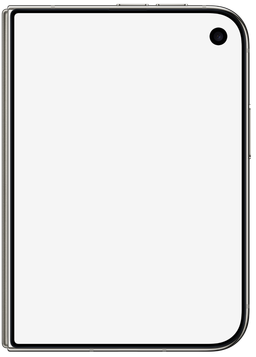
Pick the display you want to show
The iPhone Duo editor has an Outer and Inner display selector. Use Outer for the compact cover-screen experience and Inner for the expanded app layout. Each option has its own frame and screen proportions.
The outer frame uses a 1398 × 2034 screen image. The inner frame uses 1878 × 2670 in portrait, or 2670 × 1878 in landscape. These are the screen areas used by mockdevice’s frames; the exported image is larger because it includes the hardware.
Use a separate app layout for each screen
A narrow cover-screen screenshot usually should not be stretched across the inner screen. Capture or export your expanded layout separately, then use it with the Inner option. This keeps cards, text, and navigation at their intended proportions.
For a side-by-side presentation, export each display as a transparent PNG and arrange both images in your design tool. Keep the frame color consistent so the pair reads as the same device.
Check the fit before downloading
Upload your screenshot, choose a color, and select the orientation. Check that important controls remain visible at the corners and around the cover camera. Use Fit image when you need to keep the whole source, or crop deliberately for an edge-to-edge result.
Download the device-only PNG for a transparent background. Use Canvas when you want a fixed output size or a colored background. No account or Photoshop installation is required.
What the fold preview does
The homepage and device catalogue show an unfolding preview to help you see both screens. The editor exports still PNG mockups of the selected display. It does not export a folding video or a 3D model.
Your uploaded screenshots are processed in the browser. Public device previews have blank screens. Your screenshot appears only in your own editor.
Written by mockdevice · Updated October 29, 2026