
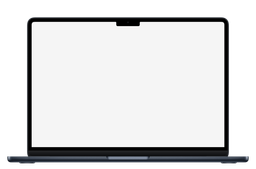
Use Device only for a cutout
Choose an iPhone, iPad, Mac, or Apple Watch frame and add your screenshot. Leave the export layout on Device only and select Download PNG. The background outside the device is transparent, ready to place on a website, slide, or design canvas.
The screenshot itself still fills the device screen. Transparency removes the area around the hardware; it does not remove a white background inside your app screenshot.
Why the download size differs from your screenshot
The input size describes the screen. The exported PNG includes the bezel and other hardware: a MacBook includes its base, and an Apple Watch includes its band. Its dimensions therefore differ from the screen resolution.
The editor displays the final pixel dimensions before download. Use Canvas mode to choose a fixed output size and adjust the device size within it. Choose a transparent canvas background when you want that larger layout to remain see-through.
Check transparency in your design tool
Some image viewers show transparent areas as white or black. Place the PNG on a colored background to check its edges. If the background color shows around the device, the PNG has retained transparency.
Keep the file as PNG when moving it between tools. Converting it to JPEG flattens transparency into a solid background. For App Store-sized exports, use an opaque background and review Apple’s current screenshot requirements.
Use the original screenshot for sharper results
Export your app screen at full resolution before adding a device frame. A compressed messaging-app image or a small website thumbnail may look soft when enlarged. Matching the frame’s screen proportions also reduces unnecessary cropping.
You can create and download the mockup for free, without an account or a watermark added by mockdevice. Images are rendered locally in your browser, and multiple screenshots can be exported together as a ZIP.
For store submissions: Apple’s screenshot specifications ↗
Written by mockdevice · Updated October 20, 2026