
Capture one viewport, not the entire scrolling page
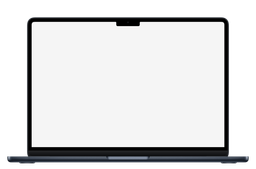
A laptop screen shows a viewport of a website, not its full scrolling length. Capture the part you want to present at a desktop width. A very tall full-page screenshot will either crop heavily or shrink to leave empty space inside the display.
For a native desktop app, capture the intended window or full-screen layout. Include browser chrome only if you want it to appear inside the final mockup. mockdevice adds the hardware frame, not a browser address bar.
Choose a MacBook frame that suits your layout
Choose a MacBook Air or MacBook Pro in the Mac catalogue and check its screen dimensions. A smaller laptop frame and a larger display have different proportions; match the screenshot to the selected model before you export.
The editor supports image uploads, not live URL capture. Save your screenshot as PNG, JPG, or WebP, then add it to the device screen. PNG is a good starting point for interface text and flat colors.
Check the notch, edges, and text
Inspect the top navigation and any controls near the screen corners. Some MacBook frames have a camera notch. Keep important content clear of that area, and use the crop controls if your capture includes unwanted desktop margins.
Use Fit image to preserve the entire screenshot, or fill the display and reposition the crop. Resizing a low-resolution screenshot cannot recover missing text detail; use a higher-resolution capture with the same proportions.
Place the laptop on your own background
Device only downloads a transparent PNG containing the screen, lid, and laptop base. It is ready to place on a landing page, slide, or design canvas. The base makes the final image wider than the screen itself.
Use Canvas for a background and fixed output dimensions. You can create and download the mockup for free without an account, and image processing happens locally in your browser.
Written by mockdevice · Updated October 29, 2026